How to Request Access in Microsoft Teams (Governed, Audited, 2026)
A governed access request in Microsoft Teams runs six steps: ask, verify, check policy, approve in Teams, provision, record evidence. How it works, and why the chat is never the authority.

A governed access request in Microsoft Teams runs six steps: ask, verify, check policy, approve in Teams, provision, record evidence. How it works, and why the chat is never the authority.
- A governed access request in Microsoft Teams is a six-step loop: the employee asks in chat, the requester is verified, policy and role rules are checked, the approver approves or denies in Teams, the access is provisioned, and the evidence is recorded.
- What makes it governed rather than a chatbot shortcut is that the assistant is the interface, never the authority: the request runs through the organization's existing policies, approval chains, and roles, and permissions are inherited from Microsoft Entra ID, Active Directory, Okta, or Ping.
- Avatier Actions exposes the relevant outcomes as MCP tools, chiefly Lifecycle Management (request and remove access and roles), Workflow Approval (pending requests and history), and Group Management, so the same governed actions can be reached from Teams, Outlook, Copilot, or Claude.
- Avatier Ledger records who asked, what ran, under whose authority, and what policy allowed it, so every completed request carries its own audit evidence instead of a ticket note someone may or may not have written.
- Under Pay Per Identity Action™, a completed, verified, policy-compliant request is an outcome, which is the unit Avatier charges for; the approach does not fix a bad role model, a stale catalog, or approvers who approve everything.
To request access in Microsoft Teams the governed way, an employee asks for the access in a Teams chat, the request is tied to their verified identity, checked against existing policy and role rules, routed to the right approver who approves or denies in Teams, provisioned in the target system, and recorded as audit evidence. The chat is only the front door. The decision still belongs to the organization's identity policies, its approval workflows, and the directory permissions it already runs.
That distinction is the whole article. Plenty of tools can put a chat window in front of an access request. Far fewer keep the governance intact once they do. This guide covers the end-to-end flow, the six steps, an illustrative conversation, what separates it from a chatbot shortcut, Avatier's approach, admin setup, and the limits.
It sits in the Conversational AI pillar of this blog. The conversational identity hub covers the broader shift to identity work done by conversation; this piece is the practical how-to for the request people make most often.
What a governed access request in Teams looks like, end to end
Picture the request every service desk sees daily: someone needs access to an application, a folder, a group, or a role, before a deadline. It usually starts in a portal form, an email, or a ticket, then waits while someone works out who the requester is, whether they should have it, and who must approve.
A governed request in Teams collapses that into one conversation without skipping any of the checks. The employee states what they need in plain language. The identity service behind the chat already knows who they are, because they are signed in. Policy and role rules are evaluated before anything is routed. The approvers who policy says must approve are asked, and they answer in Teams. Provisioning happens through the identity platform, not by hand. And a record is written that says who asked, what ran, under whose authority, and what policy allowed it.
The difference from the ticket queue is not that approval disappears. It is that the waiting, re-keying, and chasing disappear, while the controls stay where they were.
| Stage | Ticket queue | Governed request in Teams |
|---|---|---|
| Where it starts | Portal form, email, or phone call to the service desk | A chat message in Teams, Outlook, or Copilot |
| Requester identity | Typed into a form, often re-keyed by an agent | The signed-in identity, with step-up verification where policy requires it |
| Policy and role check | Done by hand by whoever works the ticket | Existing policy and role rules, evaluated before routing |
| Approval | Email chains or a separate approval tool | Approvers act on the pending request in Teams |
| Provisioning | Manual handoff, sometimes a second ticket | Carried out through the identity platform's lifecycle action |
| Evidence | Ticket notes, if someone wrote them | Recorded with the outcome: who asked, what ran, under whose authority, what policy allowed it |
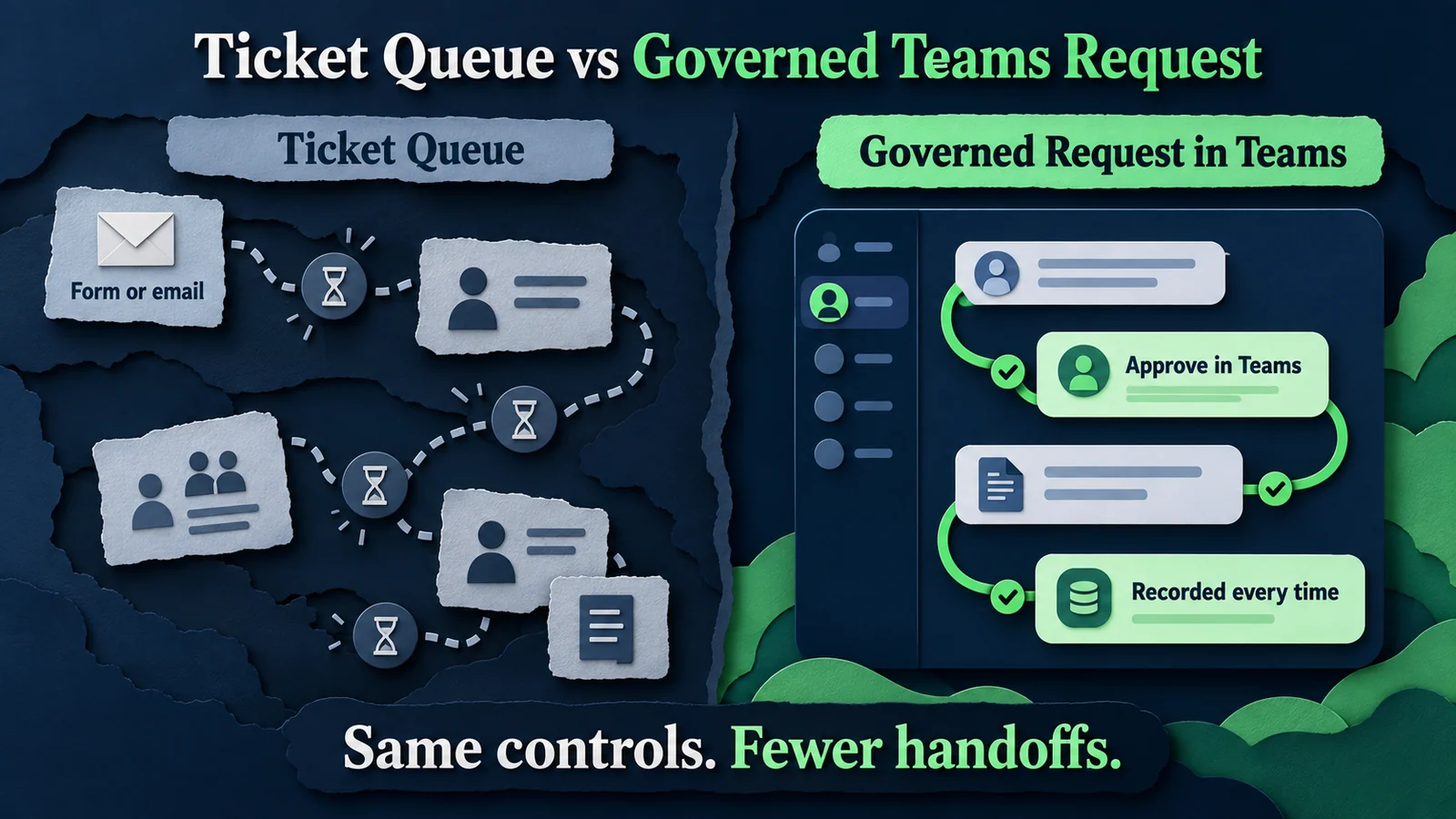 Same controls, fewer handoffs: a governed Teams request keeps every check a ticket queue has and removes the re-keying and chasing between them.
The CGov guide to implementing self-service access requests covers the catalog, routing, and provisioning design underneath any request channel. This article assumes that design exists and focuses on doing it from Teams.
How to request access in Microsoft Teams: the six steps
Here is the governed flow in order. The requester sees steps 1 and 6. The organization's controls do the work in between.
-
Ask in Teams, Outlook, or Copilot. The employee states what they need and why, in ordinary language: the resource, the level of access if they know it, and the business reason. The assistant's first job is to pin down exactly which cataloged resource they mean, because a vague ask ("access to the finance stuff") cannot be evaluated. Good assistants confirm the specific application, group, or role back to the requester before anything moves.
-
Verify the requester. The request is bound to the signed-in identity, not to a name typed into a field. Permissions are inherited from the directory the organization already runs, whether that is Microsoft Entra ID, Active Directory, Okta, or Ping. For sensitive resources, policy can require step-up verification before the request proceeds, so a hijacked chat session cannot quietly request privileged access. Where device-bound MFA is unavailable, the deviceless option described in what an identity continuity layer is keeps that human check possible.
-
Check policy and role. Before routing, the request is evaluated against the organization's existing rules: does the requester's role already include this access, does it need approval, does it conflict with something they already hold, is it time-boxed? Access that every member of a role should have may not need approval at all. Access that creates a separation-of-duties conflict should stop here, as the CGov piece on separation of duties explains.
-
Route to the approver, who approves in Teams. The request goes to whoever policy names: the manager, the resource owner, or both in sequence. Each approver sees who is asking, what they are asking for, why, and which policy applies, and approves or denies in the conversation. The approval chain is the organization's, unchanged. Only the place the approver acts has moved.
-
Provision. On approval, the access is granted through the identity platform's own lifecycle action, so the grant lands in the system of record and is visible to later access reviews and deprovisioning. Nobody copies details from a chat into an admin console by hand.
-
Record the evidence. The outcome is written up with the identity involved, how the request was initiated, the authorization context, the policy applied, the action taken, and the result. The requester gets a confirmation. The auditor, months later, gets a record that does not depend on anyone's memory.
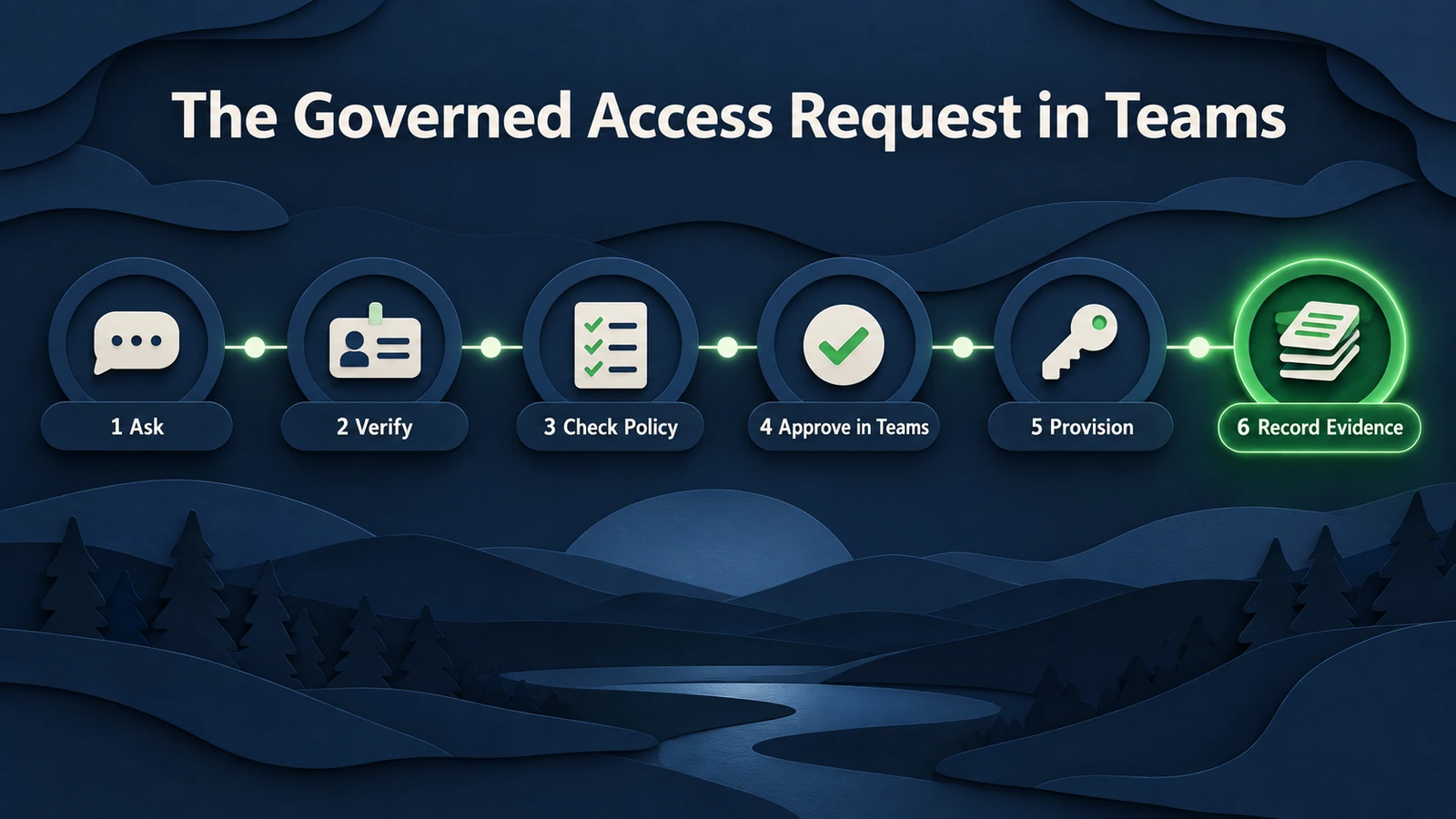 Six steps, one conversation: the requester only sees the ask and the answer, while verification, policy, approval, and evidence run in between.
Two properties make this a real access request system rather than a faster ticket. First, steps 2 through 5 are evaluated by the organization's identity controls, not by the assistant. Second, step 6 happens every time, automatically, for every outcome, instead of depending on someone filling in a notes field.
An illustrative example conversation
The exchange below is illustrative. It shows the shape of a governed request, not a literal transcript of any product's interface, and the names, resources, and wording are invented for the example.
Employee (financial analyst): I need access to the finance reporting workspace for quarter-end close.
Assistant: I can request that. I found two matching resources: Finance Reporting (Read) and Finance Reporting (Contributor). Your role's standard access is Read. Which do you need, and what's it for?
Employee: Contributor. I'm building the variance reports this quarter.
Assistant: Contributor access needs approval from your manager and the workspace owner under your organization's policy, and it's granted for 30 days. I've submitted the request with your reason. You'll get a message here when it's decided.
On the approver's side, the manager receives the pending request in Teams:
Assistant: A request is waiting for your approval. Requester: your direct report, financial analyst. Resource: Finance Reporting (Contributor). Reason: variance reports for quarter-end close. Policy: contributor access requires manager and owner approval, 30-day expiry. Approve or deny?
Manager: Approve.
Assistant: Approved. It now goes to the workspace owner for the second approval.
Behind that conversation, an MCP-compatible assistant is calling an approved capability rather than editing a directory directly. A simplified, illustrative sketch of what that call might carry looks like this. It is not Avatier's published tool schema.
# Illustrative only: not a real API schema
tool: request_access
arguments:
  requester: signed-in session identity
  resource: Finance Reporting (Contributor)
  justification: Variance reports for quarter-end close
result:
  policy_check: passed
  approvals_required: [manager, resource_owner]
  expiry: 30 days
  status: pending_approval
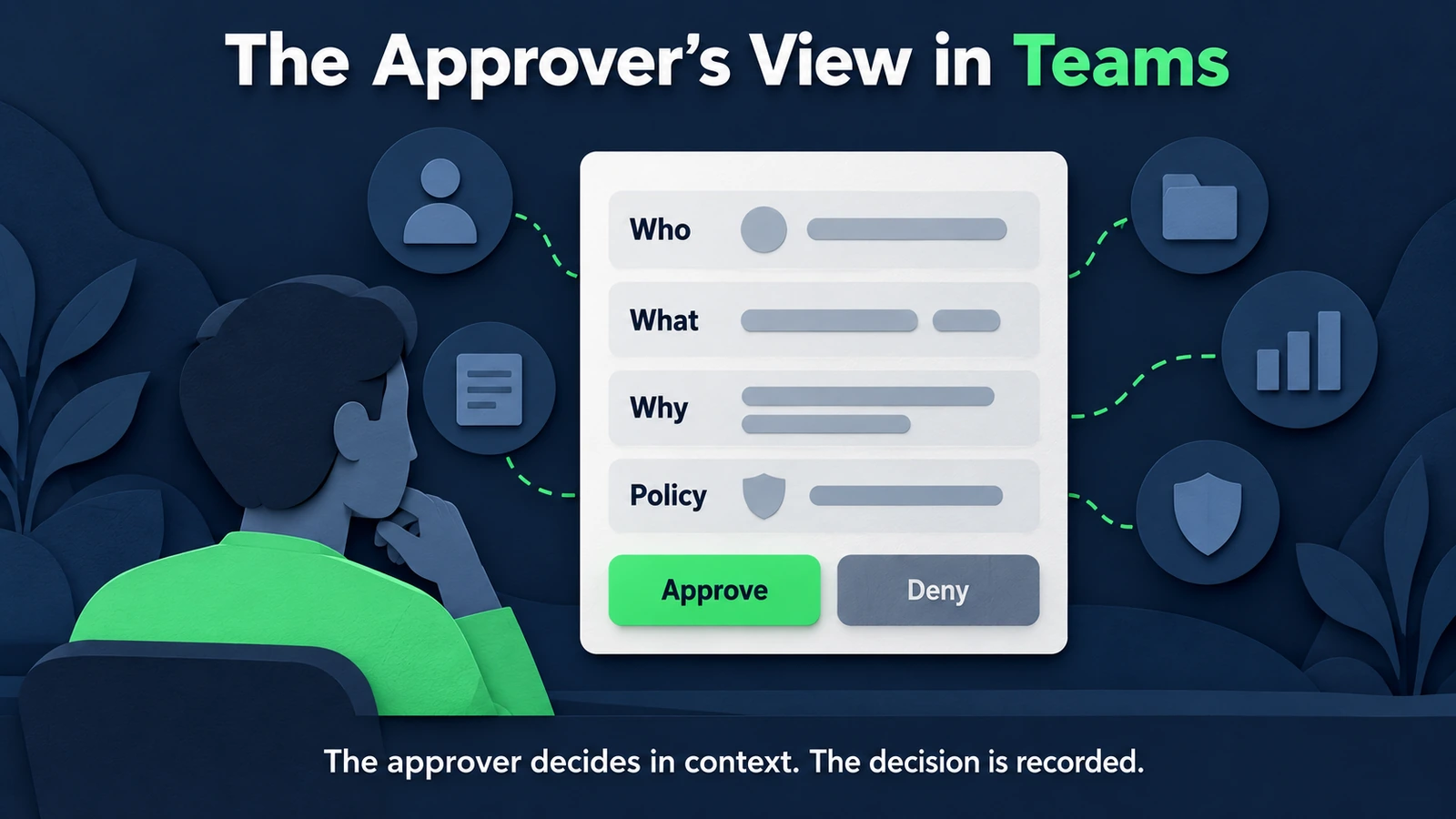 The approver decides in context: who, what, why, and which policy, on one card, with the decision recorded against the request.
Notice what the assistant did not do. It did not decide the analyst deserved contributor access. It did not skip the second approver because the first said yes. It did not choose the expiry. Each of those came from policy the organization had already defined.
Governed, not a chatbot shortcut
The fastest way to put access requests in chat is to give a bot a privileged service account and let it make changes. That is also the fastest way to create the ungoverned, uncertifiable access that auditors flag, the pattern the CGov piece on ticket-driven shadow provisioning describes.
A governed request in Teams is different in four specific ways.
The assistant is the interface, never the authority. The assistant collects the request and presents the result. Whether the action is permitted is decided by the identity platform against the organization's rules. AI assistants do not receive unrestricted access. Every request must invoke an approved capability and remains subject to authentication, authorization, delegated authority, policy enforcement, and audit controls.
Existing policies, approvals, and roles apply unchanged. Nothing is re-modeled for the chat channel. The approval chain for a finance role is the same whether the request starts in Teams, a web portal, or a phone call. That consistency is what lets an auditor treat the channel as irrelevant.
Permissions are inherited, not reinvented. The connection inherits permissions from the directory and identity platforms already in place (Microsoft Entra ID, Active Directory, Okta, Ping), so there is no second permissions model to keep in sync and no chat-specific super-user.
Every outcome produces evidence. A shortcut leaves a chat log at best. A governed request leaves a structured record of who asked, what ran, under whose authority, and what policy allowed it.
The general MCP security guidance applies here too, and it is worth being conservative. Grant the connection least privilege. Keep human approval on sensitive grants. Allow-list the capabilities the assistant can invoke rather than exposing everything. Log every action. Treat prompt injection and tool poisoning as real risks, since instructions hidden in a document or message can try to steer an assistant. Vet any MCP server before connecting it. The CGov guide on how to secure MCP servers goes deeper, and MCP identity governance covers the governance model.
What Avatier ships toward this pattern
Avatier Identity Anywhere 2027™ is Avatier's AI-native identity platform built on the Model Context Protocol, the open standard that lets AI assistants connect to tools and data through MCP servers. Microsoft Teams is one of its channels, alongside web, mobile, Outlook, chat, voice, phone, APIs, and MCP-compatible AI, in 34 languages across every conversational channel.
Avatier Actions is an MCP connector that exposes more than 50 identity outcomes as MCP tools across eight modules. For access requests in Teams, three do most of the work:
- Lifecycle Management: request and remove access and roles, workflow participation, rehire, and transfer. This is where an access request is submitted and, once approved, carried out.
- Workflow Approval: pending requests and history. This is what lets an approver see what is waiting and act on it from a conversation, and lets anyone look back at what was decided.
- Group Management: twelve actions, from membership and ownership to nesting and expiration. Much of the access people ask for is really group membership, and expiration matters for time-boxed grants.
The other modules round out the same conversational surface: Password Management and Help Desk (including verify user and assisted reset), User Management, Access Governance for campaign management and review, and Reports. Avatier Actions works inside Claude, Claude Code, Microsoft Copilot, Avabot, and any MCP-compatible assistant, so an employee or manager can ask in Teams, Outlook, Claude, or Copilot and reach the same governed outcome. In every case the outcome runs through the customer's existing policies, approvals, and roles. Nothing bypasses governance.
Avatier runs alongside the platforms organizations already own, including Microsoft Entra ID, Active Directory, Okta, and Ping for permissions, and SailPoint, Saviynt, ServiceNow, and Moveworks elsewhere in the stack. It does not ask anyone to replace them. For teams that also handle credential requests in Teams, the CGov Password Portal pillar covers self-service resets and unlocks across web, mobile, Teams, Outlook, and AI voice.
A healthcare organization with more than 100,000 identities is running or piloting the platform. Avatier's security posture, including SOC 2 Type II audited with zero exceptions noted and ISO/IEC 27001:2022 certification, is published at the Avatier Trust Center.
Admin setup overview: one administrator connection
The administrator side is deliberately small. Setup is one administrator connection. Permissions are inherited from the identity platforms the organization already runs, so there is no per-user setup, no new permissions model, and no console to learn.
That does not mean there is nothing to decide. The work that matters happens before the connection, not in it:
- Confirm the policies you already have. The chat channel will enforce whatever approval chains, role rules, and expiry policies are defined today. If a resource has no owner or no approval policy, fix that first, because a chat interface will surface the gap faster than a portal did.
- Decide which outcomes to expose. Starting with low-risk requests, such as standard group memberships, is a sensible way to build confidence before exposing privileged roles.
- Agree the step-up rules. Decide which resources require step-up verification before a request proceeds, and make sure the people who request them have a verification method that works when their phone does not.
- Coordinate with your Microsoft administrators. How the Teams channel is enabled in your tenant is a Microsoft-side decision that follows your organization's own app and consent governance. Treat it as a normal change, reviewed by the people who own your Teams environment.
- Pilot, then widen. Run a pilot group, compare the outcomes and the evidence against your current queue, and expand once both look right.
This article deliberately does not list Microsoft admin-center click paths, because they vary by tenant, licensing, and policy, and change over time. The Avatier side is the single administrator connection. Everything else follows controls you already own.
Evidence and pricing: Avatier Ledger and Pay Per Identity Action™
Avatier Ledger is the second MCP connector, and it is what turns each request into evidence. Ledger turns every outcome into evidence and every report into a question. It records who asked, what ran, under whose authority, and what policy allowed it, for human-initiated and agent-assisted actions alike. Underneath, each Secure Outcome records six things: the identity involved, the initiating agent or experience, the authorization context, the policy applied, the action taken, and the final result.
For a Teams access request, that means the audit question "who approved this contributor access, and why?" becomes something you ask rather than reconstruct. Persona Briefings then tailor the answer to the person asking. A CISO receives compliance framing with the organization's identity statistics and remediation in 0–30, 30–90, and 90-plus-day windows. A CFO receives cost and breach-prevention framing, with identity spend reconciled to completed actions. The security team receives exposure, dormant and orphaned access, privileged activity, and the vishing surface at the help desk. The CGov article on the AI agent audit trail in Avatier Ledger covers the evidence model in depth. Avatier helps support evidence needs for frameworks such as SOX, HIPAA, NIST, and GDPR; it does not certify you against them.
Pay Per Identity Action™ is Avatier's pricing model in which customers pay only for completed, verified, policy-compliant identity outcomes, instead of licensing users, modules, and services in advance. Avatier calls those units Secure Outcomes, and access approvals and lifecycle changes are among the examples it names. So a completed, governed access request, verified and approved under policy and carried out, is an outcome in the plainest sense, and it already carries its receipt.
Getting started is free, deployment services are included, and the Avatier Secure Outcome Guarantee™ provides a 45-day money-back guarantee. Pricing depends on environment size, expected usage, security requirements, and the Secure Outcomes deployed, and full commercial terms go to qualified organizations in the invitation-only preview. The CGov hub What is Pay Per Identity Action™ explains the model end to end.
What this approach does not solve
Moving access requests into Teams is a real improvement for requesters, approvers, and the service desk. It is not a cure for weak identity governance, and it is worth being plain about the limits.
It does not fix a bad role model. If roles are bloated or entitlements are cryptic, a chat interface will route bad requests faster. The catalog and role design still have to be right, as the CGov guide to AI-assisted role-based access control discusses.
It does not make approvers careful. An approver who approves everything in a portal will approve everything in Teams. Showing who, what, why, and which policy on one card helps, but access reviews and certification are still what catch rubber-stamping over time.
It does not remove the need for strong requester verification. A chat session is only as trustworthy as the sign-in behind it. Sensitive requests still need step-up verification, and that verification has to keep working on the day device-bound MFA does not.
It does not replace your identity governance platform. Avatier runs alongside Entra ID, Active Directory, Okta, Ping, SailPoint, Saviynt, and ServiceNow rather than replacing them. Resources that are not connected cannot be provisioned by conversation, whichever channel the request starts in.
It does not make prompt injection go away. Governed capabilities limit what an assistant can do, but connection permissions, allow-lists, and human approval on sensitive actions still matter.
It does not settle commercial questions by itself. How denied, withdrawn, or expired requests are counted under Pay Per Identity Action™ is part of the commercial terms shared in the preview. Ask.
Done well, a governed access request in Teams gives employees an answer in the place they already work, gives approvers the context to decide, and gives auditors evidence that exists because the request happened, not because someone remembered to write it down. The governance was always the point. Teams is just where people now ask.
About the author

More from Identity & Access Trends

Conversational Identity: Access, Resets & Verification by Chat & Voice
Conversational identity means unlocks, resets, access requests, and approvals completed by conversation in Teams, chat, and voice, under the same policy, approvals, and evidence as the portal.

AI-Driven Biometrics in 2026: Modalities, Liveness, and What's Next
AI has redefined what a biometric even is — turning static face and fingerprint checks into continuous, behavior-aware signal, and this is a field guide to the modalities behind that shift.

Biometrics in Sci-Fi Movies: A 2026 Reality Check
For sixty years, sci-fi has been showing us biometric authentication — palm scans, retinal lasers, voice prompts, faces unlocking doors. Now most of us authenticate with biometrics every morning before we've finished our coffee. What did sci-fi get right, what did it get hilariously wrong, and what does workforce biometric authentication actually look like in 2026?